Macrostack UI
Macrostack was a unified marketing automation platform combining campaign management, multi-channel outreach (Meta, Google, Email, WhatsApp, SMS), audience segmentation, analytics, creative management, and an AI marketing assistant.
1. Dashboard
Platform home dashboard — a marketing command center with an AI-first experience. Users land here after login and get a consolidated view of all channel performance, AI-driven insights, and quick-action entry points. The Yedi AI assistant is ever-present via a search bar, enabling natural-language queries for reports, campaign creation, and performance summaries.
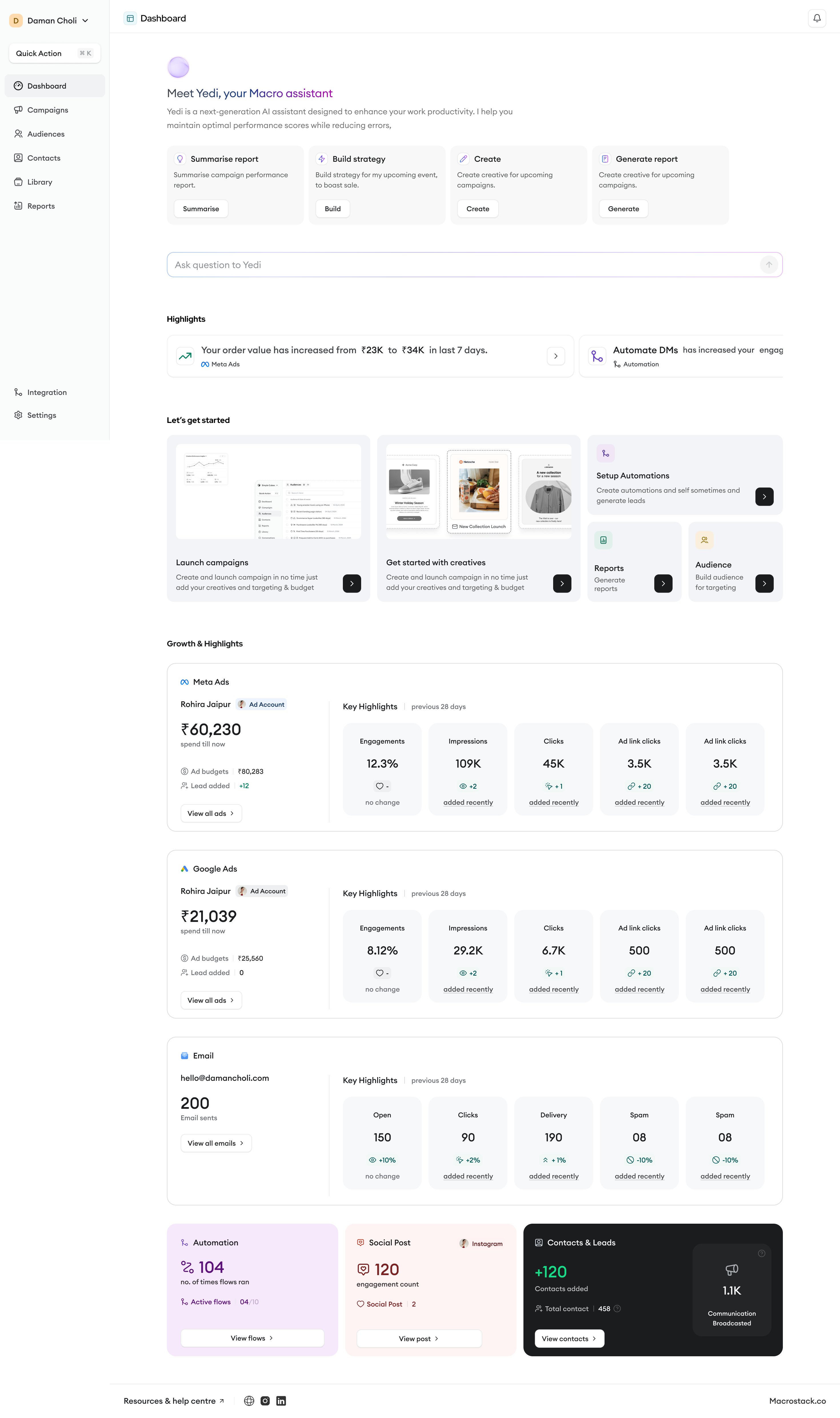
Key UI Sections:
- AI Assistant ("Yedi") — marketing assistant capable of summarising reports, building strategies, creating campaigns, and generating reports
- Search/Prompt Bar — natural language assistant input
- Highlights — performance alerts and automation insights
- Quick Start Cards — launch campaigns, create creatives, reports, audience management, automations
- Channel Performance — per-channel cards for Meta Ads, Google Ads, Email showing spend, engagement, impressions, clicks, leads
- Bottom KPI Cards — automation, social posts, contacts & leads
2. Campaign Single (Analytics Views)
The campaign analytics screen serves as the primary reporting surface. Two tabs — Audience & Recipients and Performance — let marketers toggle between demographic breakdowns and hard metrics. This is where campaign effectiveness is measured and optimised.
2a. Campaign Analytics — Audience & Recipients View
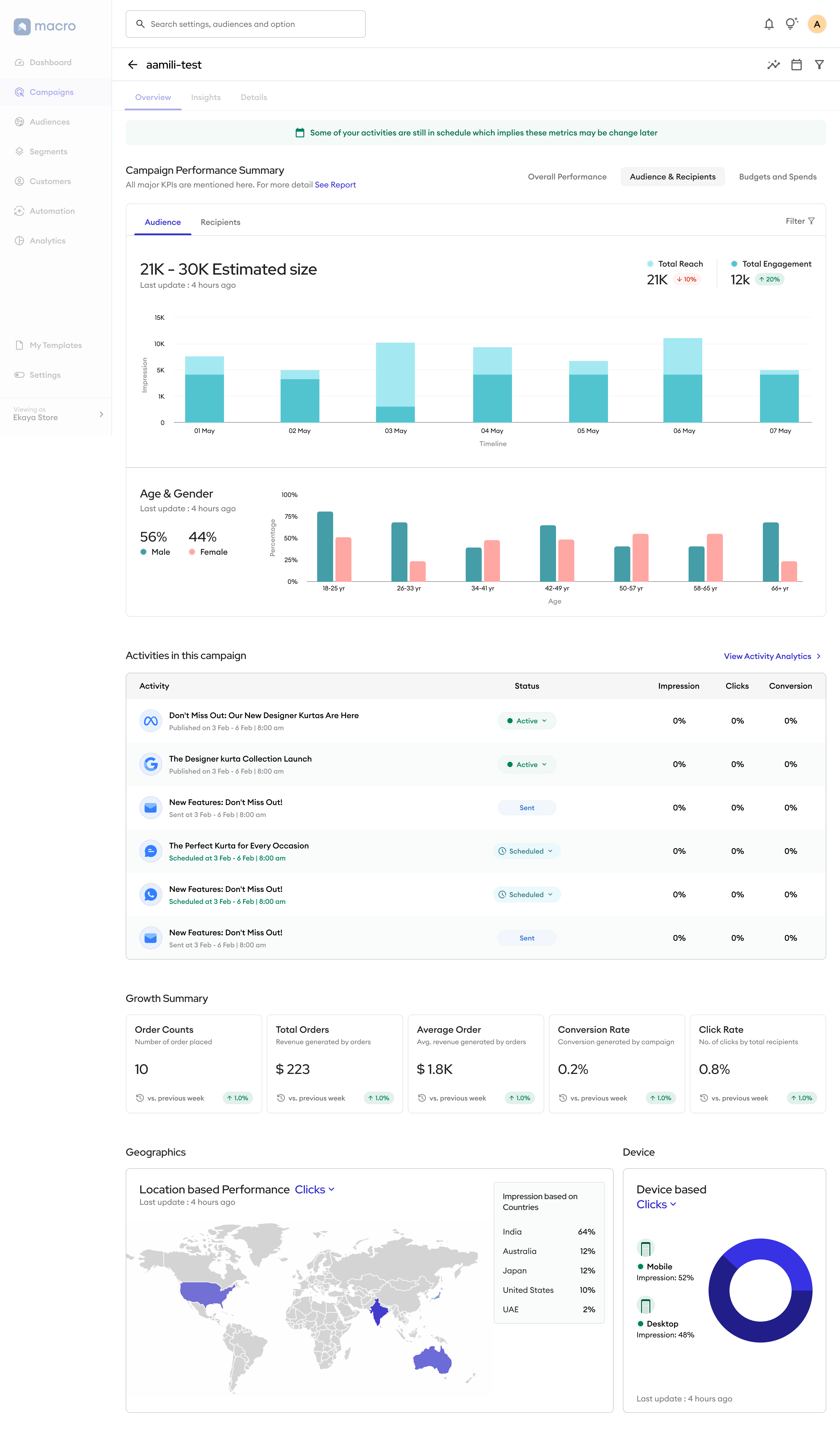
Key UI Sections:
- Campaign Header — campaign name with tabs: Overview, Insights, Details
- Audience Summary — estimated audience size, reach, engagement
- Demographics — gender split, age distribution chart
- Activity Table — activities with status, impressions, clicks, conversions
- Growth Summary — orders, revenue, AOV, conversion rate, click rate
- Geography — country map and breakdown
- Device Analytics — mobile vs desktop donut chart
2b. Campaign Analytics — Performance View
.png)
Key UI Sections:
- Performance Graph — tracks impressions, clicks, conversions over time
- Marketing KPIs — ROAS, CPC, CPM, ad spend, CPL
- Remaining Sections — activities, growth summary, geography, device analytics (shared with audience view)
3. Activity Listing
The activity listing is a management hub where all activities across campaigns are visible in a single data table. Users filter, search, and sort to find specific activities, inspect their status, and drill into performance or trigger new activity creation.
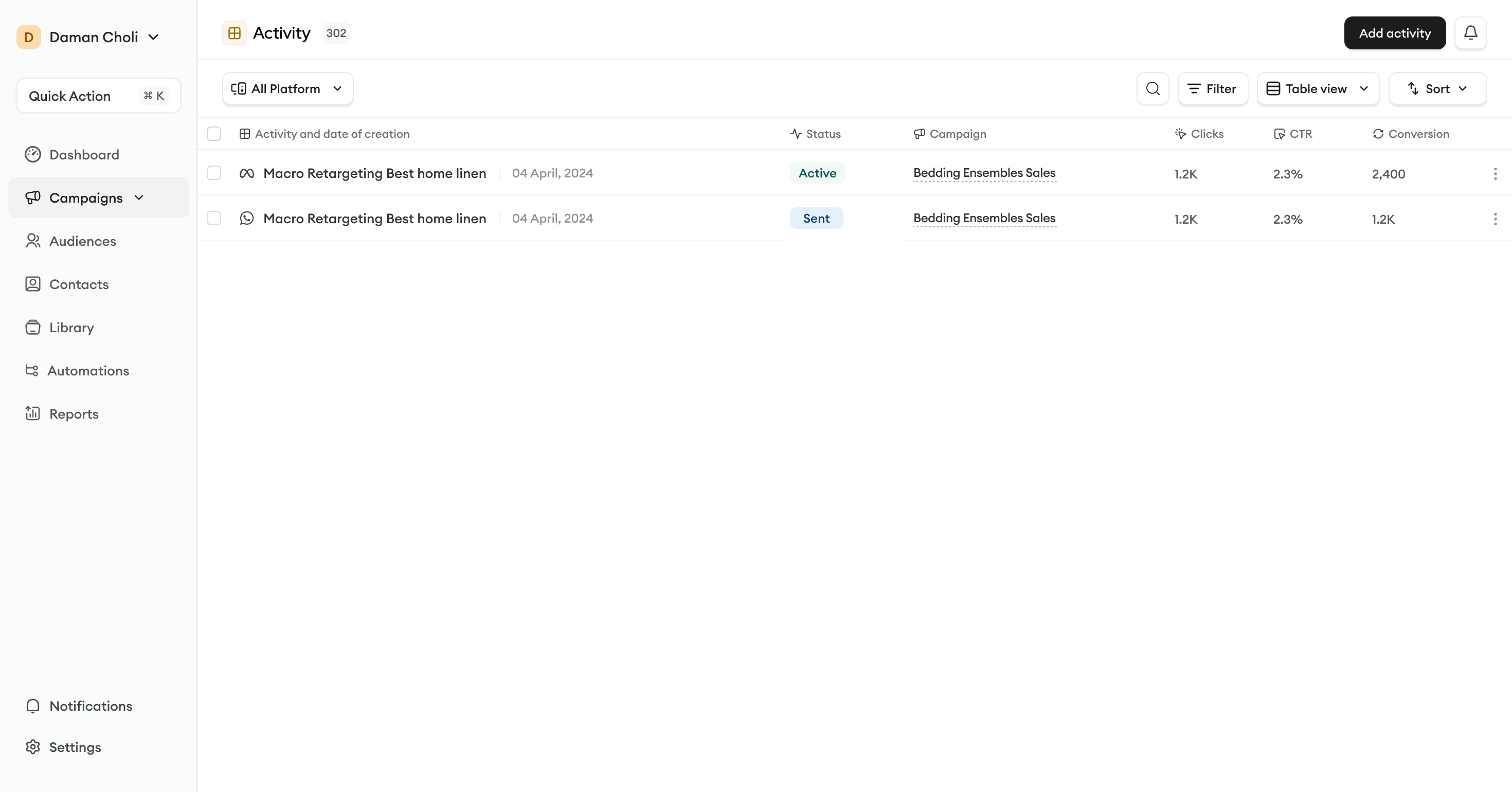
Key UI Sections:
- Header — activity count, Add Activity button
- Toolbar — platform filter, search, table view selector, sort, filters
- Activity Table — activity name, created date, status (Active, Sent, etc.), campaign, clicks, CTR, conversions
4. Activity Builder
A multi-step vertical stepper wizard that guides users through creating a new marketing activity from scratch. Progressive disclosure keeps the experience focused: each step reveals only the relevant configuration for the chosen platform and objective, reducing cognitive load for complex setups.
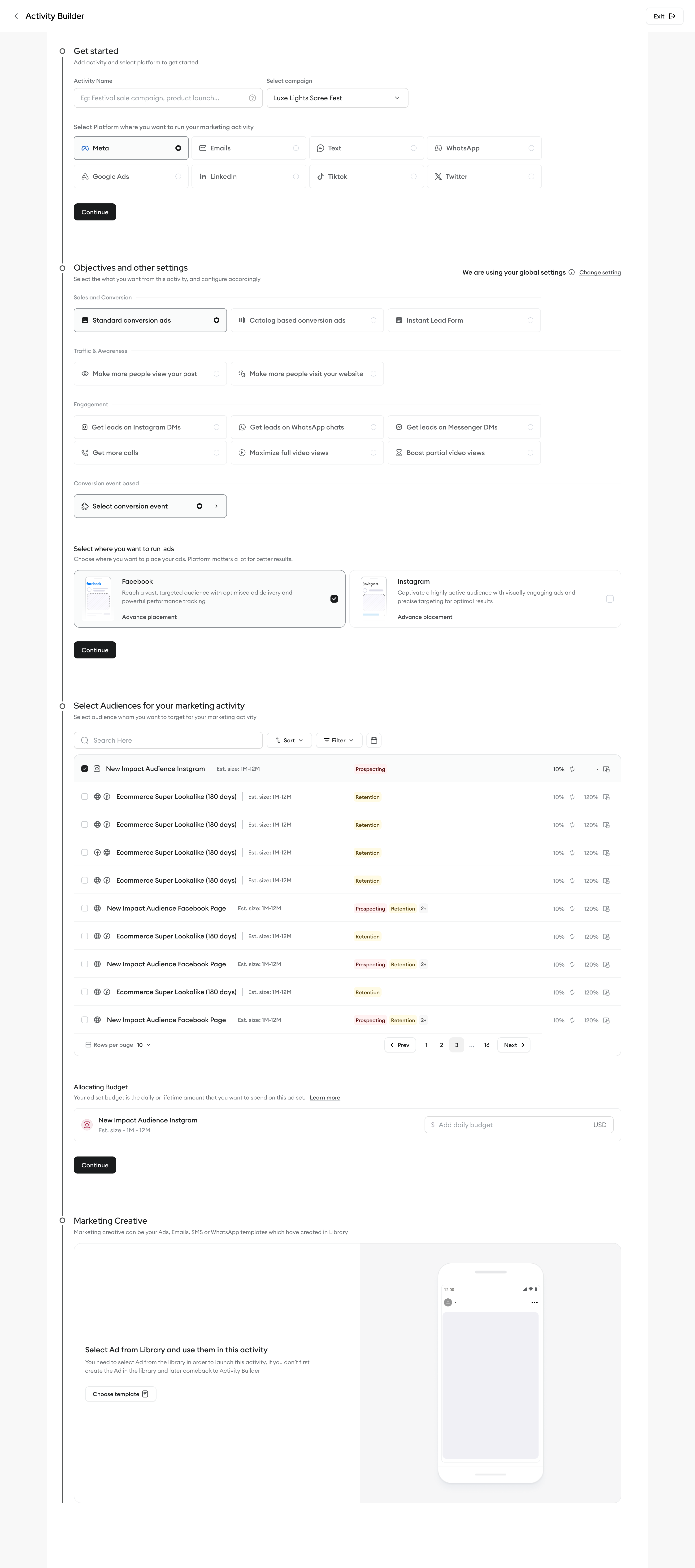
Key UI Sections (Stepped Workflow):
- Get Started — activity name, campaign selection, platform choice (Meta, Emails, Text, WhatsApp, Google Ads, LinkedIn, TikTok, Twitter/X)
- Objectives & Settings — grouped by Sales & Conversion, Traffic & Awareness, Engagement; conversion event selector
- Placement Selection — Facebook and Instagram placement cards
- Audience Selection — search, sort/filter, audience table (name, size, category, allocation %)
- Budget Allocation — selected audience summary, daily budget input
- Creative Selection — select ads/templates from library with mobile preview panel
5. Activity Single (Performance Dashboard)
A dedicated performance dashboard for a single activity. It consolidates real-time metrics, creative assets, audience targeting details, and configuration metadata in one place. Marketers use this to monitor live campaigns, assess ROI, and tweak underperforming activities.
5a. Activity Performance Dashboard
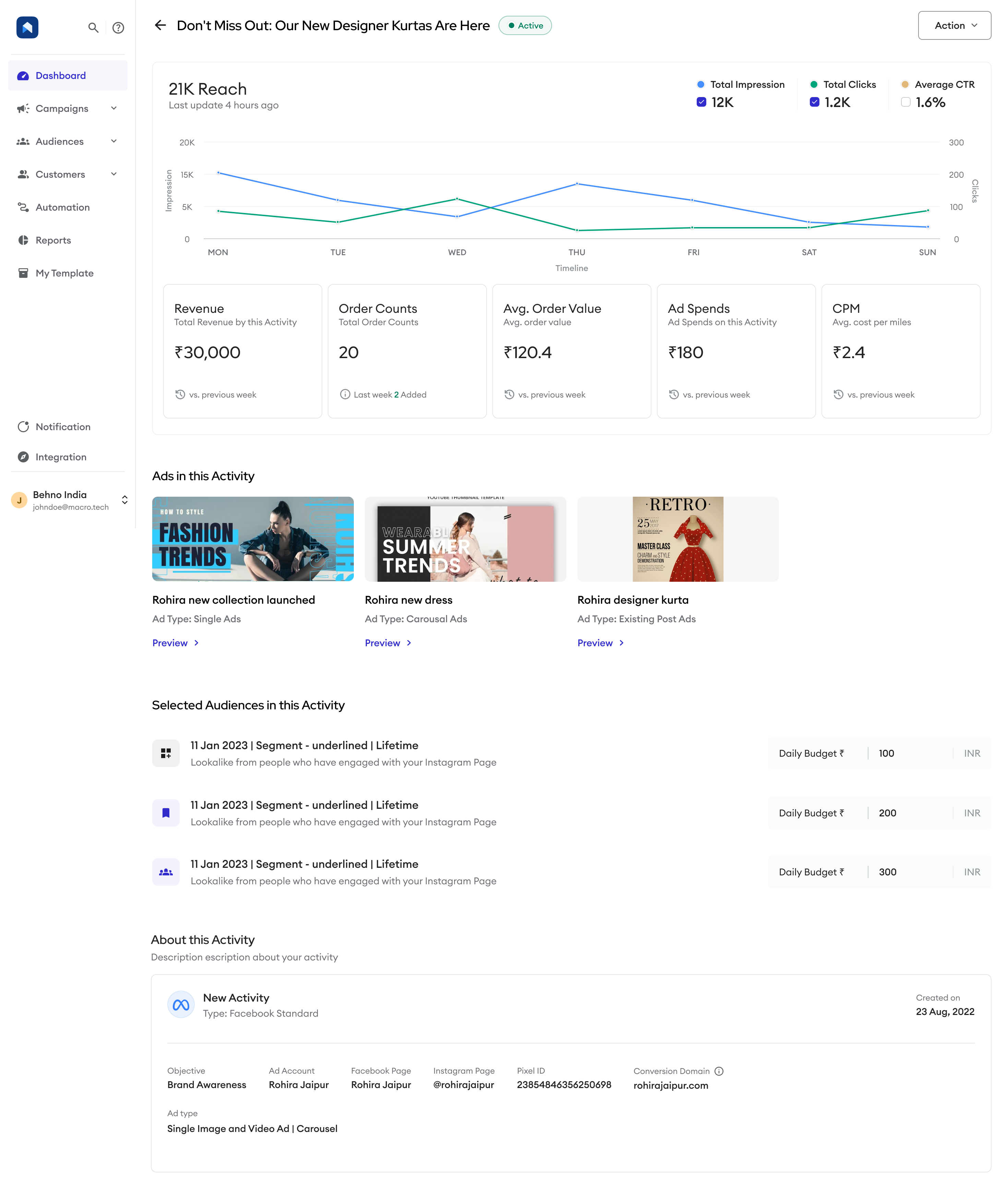
Key UI Sections:
- Header — activity title, active status badge, action menu
- Performance Overview — reach graph, impressions, clicks, CTR
- KPI Cards — revenue, orders, average order value, ad spend, CPM
- Ads Used — ad thumbnails, type, preview actions
- Selected Audiences — audience segments with budget allocations
- Activity Information — objective, ad account, Facebook page, Instagram page, pixel ID, domain
5b. Ad Preview Modal
.png)
Key UI Sections:
- Left Panel — list of selected ads with thumbnail navigation
- Main Preview Area — shows placements: Facebook Feed, Stories/Reels, Right-column/Search
- Actions — close, placement preview switching
6. WhatsApp Builder
A channel-specific wizard customised for WhatsApp's messaging paradigm. Unlike the generic activity builder, this one incorporates WhatsApp-specific primitives: sender profiles, message templates with personalisation tokens, quick replies, and a live mobile preview that mirrors the recipient's view.
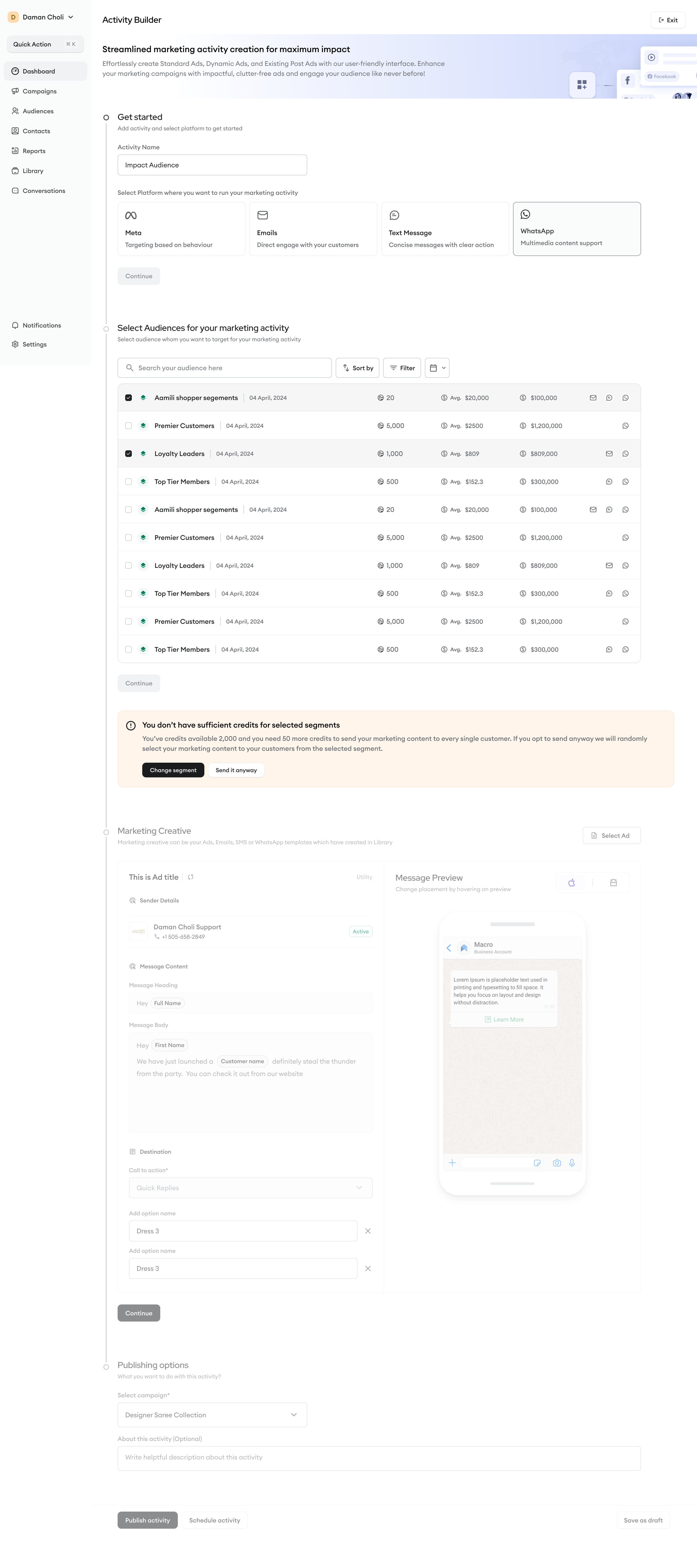
Key UI Sections (Stepped Workflow):
- Get Started — activity name, platform (WhatsApp selected)
- Audience Selection — audience table (size, estimated revenue, cost); credit warning banner (available vs required credits)
- Marketing Creative — WhatsApp sender profile, message builder (heading, body, personalization tokens), destination setup (CTA type, quick replies, options), live mobile chat preview
- Publishing — campaign selection, description, publish/schedule/save draft
7. Audience — Creation Flow (4-step sequence)
Audience creation is a guided 4-step flow that walks marketers from a data-table overview through defining, refining, and finalising an audience segment. The flow supports both preset-based targeting (e.g. past engagers) and custom interest/behaviour combinations.
Step 1: Audience Listing
Audience management table for data-heavy admin.
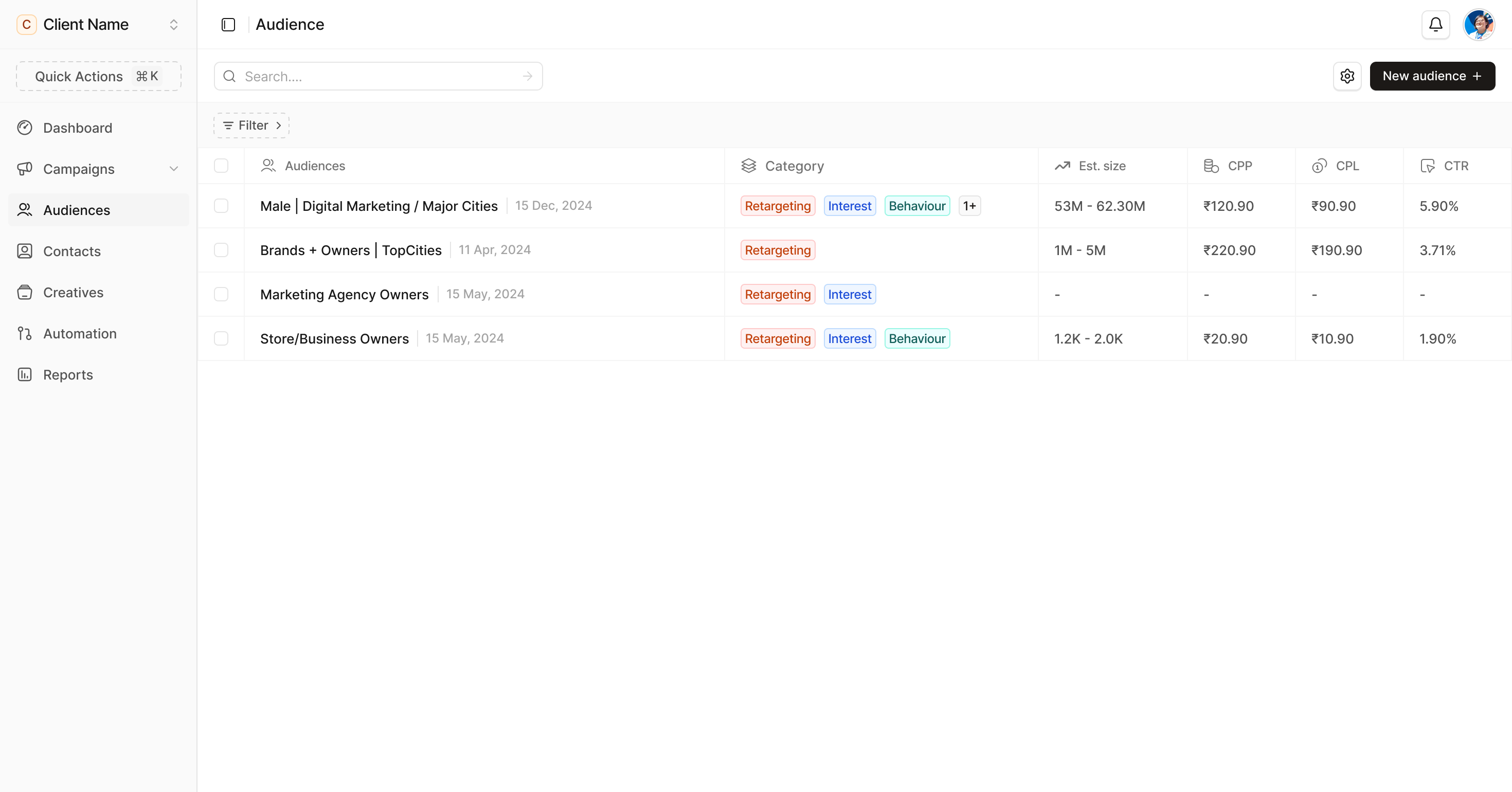
Key UI Sections:
- Header — title, search bar, New Audience button
- Columns — audience name, category, estimated size, CPP, CPL, CTR
- Categories — retargeting, interest, behaviour
Step 2: Audience Builder — Get Started
Guided wizard with decision-first workflow.
.png)
Key UI Sections:
- Audience Name input
- Ad Account selector
- Creation Options — card 1: build from presets & interests; card 2: create from templates
Step 3: Preset Selection Modal
Card selection interface with include/exclude targeting model.
.png)
Key UI Sections:
- Tabs — Audience Presets, Interest & Behaviour
- Preset Cards — Facebook Post Engagers, Instagram Fans, Website Visitors, Active Visitors, Page Visitors (each supports Include/Exclude)
- Utilities — search, sort, save
Step 4: Audience Review & Finalization
Review-before-submit workflow.
.png)
Key UI Sections:
- Step Summary — audience name, account selection, audience building (completed)
- Review Section — included/excluded presets with remove actions; interest & behaviour tags (UI Designer, Product Designer, UX Engineer, Architectural Designer)
- Actions — Create Audience, Refine Further
8. Report Builder
A wizard-driven report generator that lets users compose custom reports by selecting data sources, report templates, and delivery schedules. The AI assistant panel provides contextual best-practice guidance during report configuration.
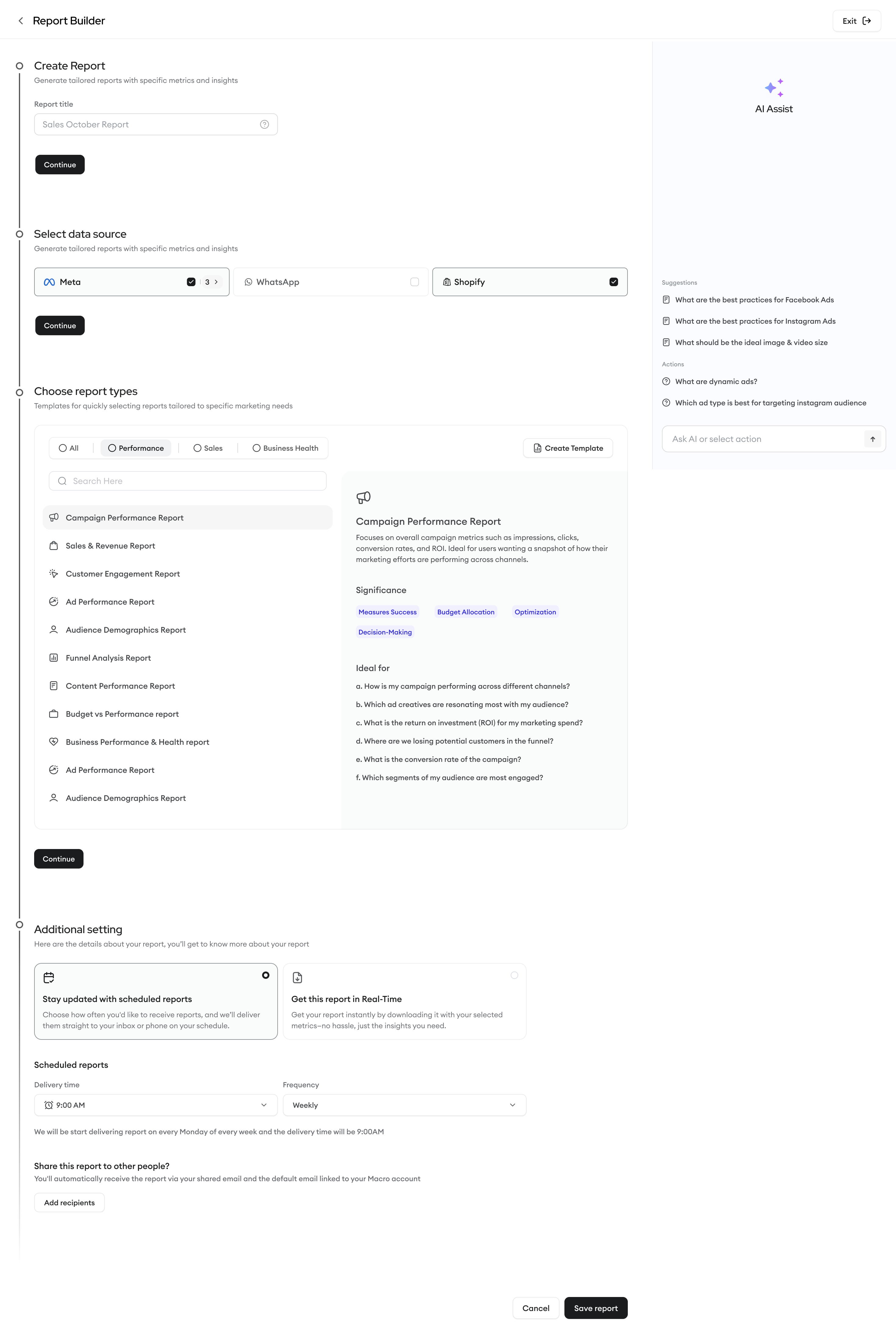
Key UI Sections (Stepped Workflow):
- Report Setup — report title
- Data Sources — selectable: Meta, WhatsApp, Shopify
- Report Type — templates: Campaign Performance, Sales & Revenue, Customer Engagement, Ad Performance, Demographics, Funnel Analysis, Content Performance, Budget Analysis, Business Health
- AI Assistant Panel — Facebook best practices, Instagram best practices, ad sizing recommendations
- Delivery — scheduled reports or real-time; scheduling (time, frequency); sharing (add recipients)
Information Architecture
Dashboard (AI-first command center)
├── Campaigns (Single view: Audience/Performance analytics)
│   ├── Activities (Listing)
│   │   ├── Activity Builder (Multi-step platform wizard)
│   │   ├── Activity Single (Performance dashboard)
│   │   │   └── Ad Preview Modal
│   │   ├── WhatsApp Builder (Channel-specific builder)
│   │   └── ...
│   └── ...
├── Audiences
│   ├── Audience Listing (Data table)
│   ├── Audience Builder (Step 1: Name & Source)
│   ├── Preset Selection (Step 2: Include/Exclude)
│   └── Audience Review (Step 3: Finalize)
├── Reports (Builder with AI assistant)
└── AI Assistant ("Yedi")